
How to Bundle Items
To offer multiple related products for sale together as a single bundle, you can utilize the Grouped Product feature available.
A grouped product functions as a parent product, which means it does not have its own price field. It serves as a container for multiple individual products that customers can purchase together.
Here is a step-by-step guide to creating a grouped product:
- Log In: Access your vendor dashboard.
- Navigate to Products: Go to the ‘Products’ section.
- Add New Product: Click on the ‘Add New Product’ button.
- Basic Details: Add a product image, provide a name for the group (e.g., “T-Shirt Pack”), and select a category. Note that product categories must be created by admins.
- Create Product: Hit the ‘create a product’ button. This will direct you to the product edit page.
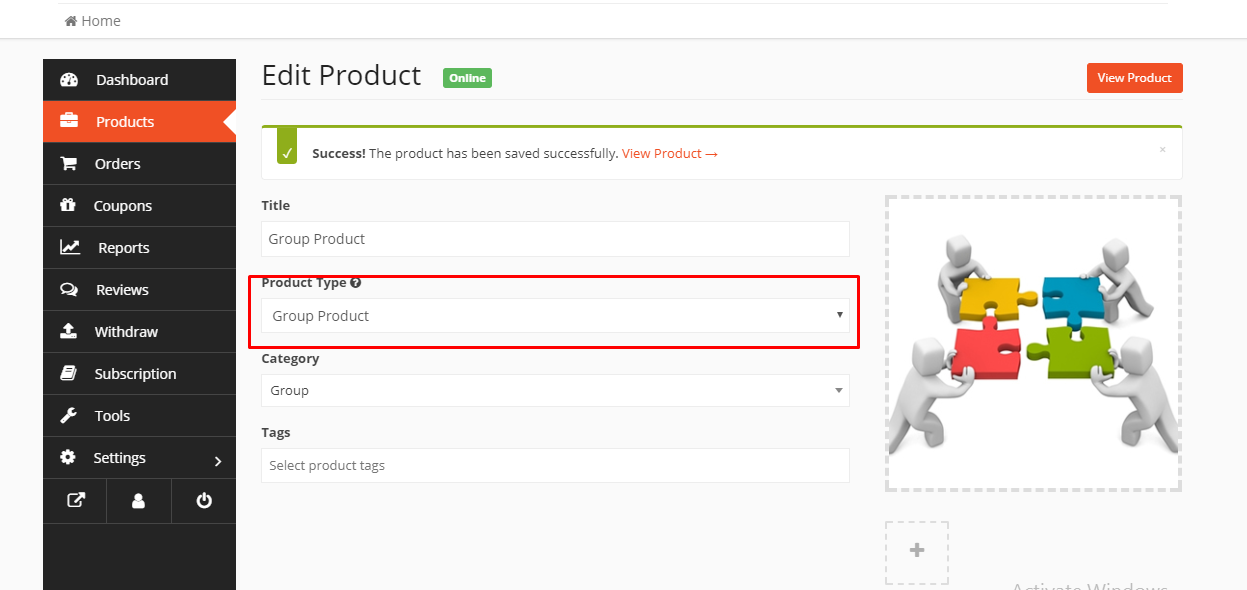
- Select Product Type: From the ‘product type’ drop-down menu, choose ‘Group product’. Remember, as a grouped product, there is no price field for the parent product itself.
- Category: Ensure a category is selected. You may also use a child category if needed.
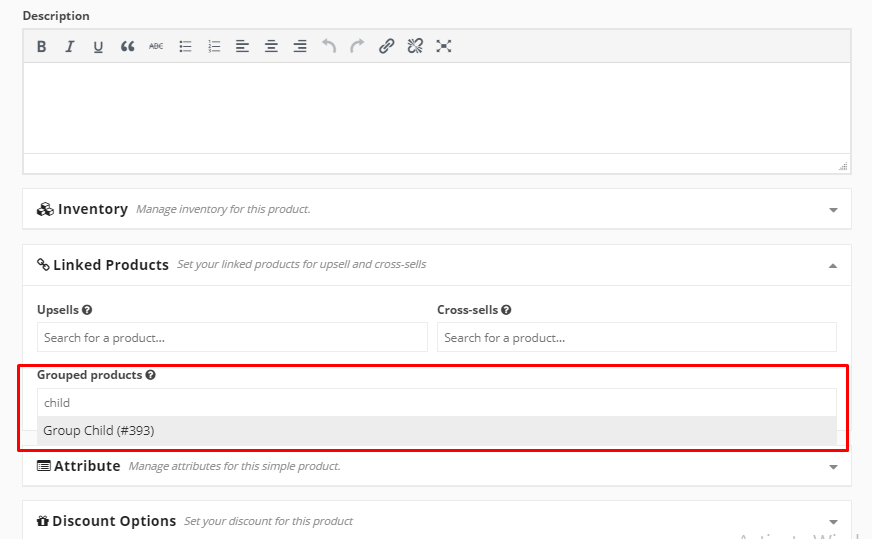
Customers will see the grouped product on a single page and can specify the amount of each individual product they wish to add to their cart before completing the purchase.
Creating grouped products allows vendors to effectively bundle items, potentially increasing average order value and offering customers convenient packages.